
By the Seovoro Team · Last updated October 5, 2026
Key takeaways
- A robots.txt file tells crawlers which parts of your site they may crawl. It lives at the root of your domain.
- Blocking a page in robots.txt does not reliably keep it out of search results. Use noindex or a password for that.
- Do not block the CSS, JavaScript or images your pages need to display.
- Always test your rules before and after you change the file.
A small mistake in robots.txt can hide your whole site from search engines, or expose pages you wanted private. This guide shows you how to read a robots.txt file line by line, what each rule really does, the mistakes to avoid and how to test your file for free.
In this guide
- What is robots.txt?
- The four lines you need to know
- A real example: our own robots.txt
- How the rules are matched
- Common mistakes
- How to test your robots.txt
- What about AI crawlers?
- Frequently asked questions
- Sources
What is robots.txt?
robots.txt is a plain text file at the root of your website, for example https://yoursite.com/robots.txt. Crawlers read it before they visit your pages to learn which areas they are allowed to crawl. It manages crawler traffic. It is not a security tool and it is not a reliable way to keep a page out of Google. Google explains this in its introduction to robots.txt.
The four lines you need to know
User-agentnames the crawler a group of rules applies to.*means all crawlers.Disallowlists a path the crawler should not crawl.Allowmakes an exception inside a path you have disallowed.Sitemapgives the full address of your XML sitemap.
Google supports these four. It does not support the crawl-delay rule, so do not rely on it for Googlebot.
A real example: our own robots.txt
This is the robots.txt file running on seovoro.com right now:
User-agent: *
Allow: /

Disallow: /admin/
Disallow: /config/
Disallow: /includes/
Disallow: /vendor/
Disallow: /test.php
Disallow: /add.php
Disallow: /submit-audit.php
Disallow: /submit-contact.php
Disallow: /whatsapp.php

Sitemap: https://seovoro.com/sitemap.xml
Read it like this: every crawler may crawl the whole site, except the admin area, internal folders, form handlers and a redirect page, and the sitemap is listed at the bottom. Public pages, CSS, JavaScript and images are not blocked.
How the rules are matched
- Most specific rule wins. Google uses the longest matching rule. If an Allow and a Disallow match equally, the less restrictive one (Allow) wins.
- Wildcards.
*matches any characters and$marks the end of a URL. For example,Disallow: /*.pdf$blocks PDF files. - Paths are case-sensitive.
/Admin/and/admin/are different. - One file per host. The file applies to the exact host, protocol and port where it sits. A subdomain needs its own file.
- Size and caching. Google reads only the first 500 KiB of the file, and it may keep a cached copy for up to a day, so changes are not instant.
Common mistakes
Disallow: /by accident. This blocks the whole site. It is often left over from a staging site.- Using robots.txt to hide pages from search. A blocked URL can still appear in results if other pages link to it. To keep a page out, use a noindex tag (the page must stay crawlable so Google can see it) or password protection. See Google's guide to blocking indexing.
- Blocking CSS, JavaScript or images. Google may not be able to display your pages properly.
- Treating it as security. The file is public. Anyone can read it, so never list secret URLs in it.
- Wrong location. It must be at the root, not in a folder.
- Typos in paths. A missing slash or wrong case means the rule does not match what you intended.
How to test your robots.txt
- Open our free Robots.txt Tester.
- Enter your domain and, if you want, a path such as
/blog.php. - Choose a crawler (Googlebot, Bingbot, GPTBot and others).
- Read the result: whether the file was found, how many rule groups were parsed, whether a sitemap is listed, and whether the path is allowed or blocked and by which rule.
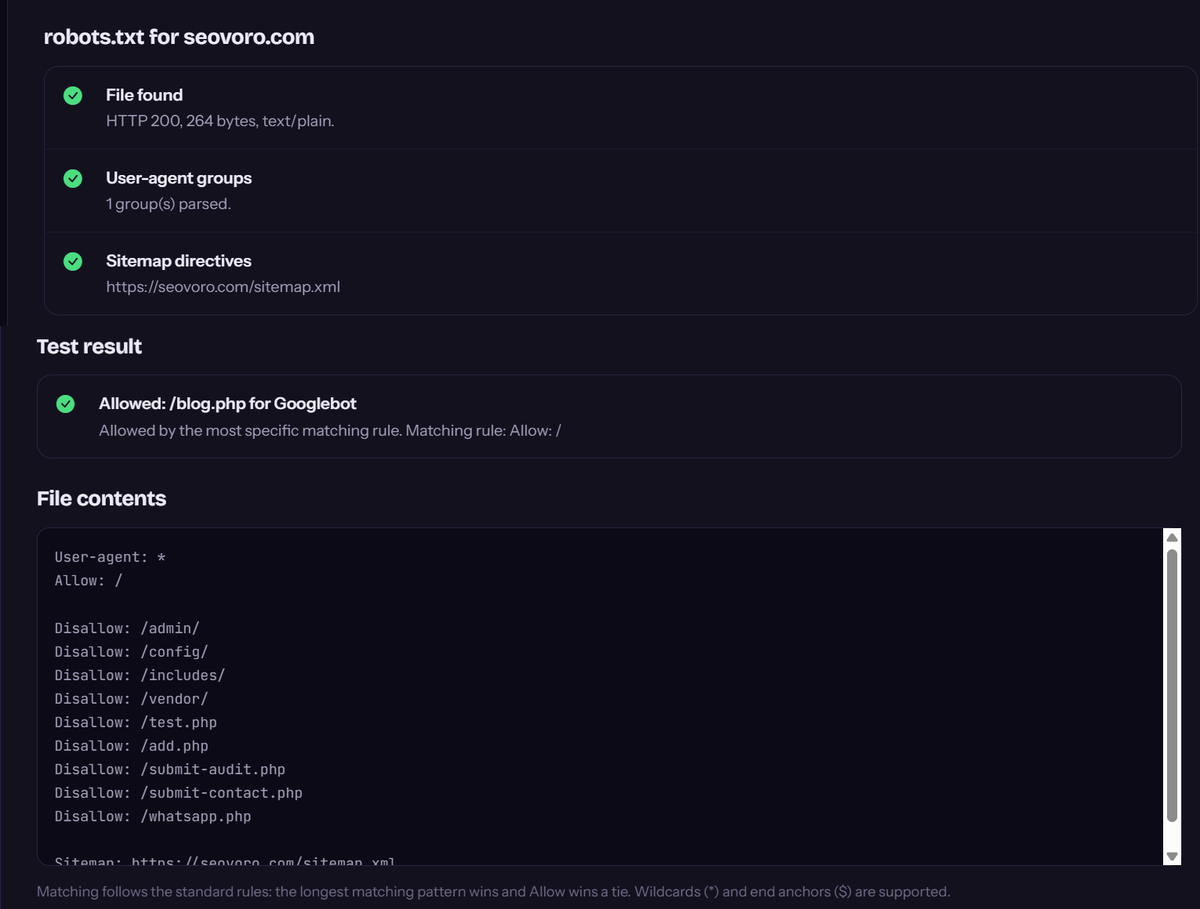
After a change, test again, and check that your sitemap is still reachable. For a full review of crawling and indexing, request a technical SEO audit.
What about AI crawlers?
Many AI companies publish crawler names you can allow or block in robots.txt, such as GPTBot, ClaudeBot, PerplexityBot and CCBot. Google-Extended is a separate control for how Google uses content for its AI models, and it does not affect how your site ranks in Google Search. Blocking AI crawlers can keep content out of some AI tools, but it may also reduce your chances of being cited there. Decide on purpose, and test your rules. For more on this topic, see our guide to getting cited in Google AI Overviews and AI Mode.
Frequently asked questions
Do I need a robots.txt file?
Not strictly. Without one, crawlers assume they may crawl everything. A file is useful when you want to keep crawlers out of admin areas, internal search or other low-value sections, and to point to your sitemap.
Where do I put robots.txt?
At the root of your domain, so it opens at yoursite.com/robots.txt. A file in a subfolder is ignored.
Does Disallow remove a page from Google?
No. It only asks crawlers not to crawl the page. The URL can still be indexed without its content if other pages link to it. Use noindex or a password to keep a page out of search.
Can I block only some crawlers?
Yes. Create a group for the crawler by name, for example User-agent: GPTBot, and add its own rules.
How long do changes take to apply?
Google may cache the file for up to a day, so allow time before you expect a change to show.
What if I do not have a sitemap line?
The file still works. Adding a Sitemap line simply helps crawlers find your sitemap faster.
Sources
- Google Search Central: Introduction to robots.txt
- Google Search Central: Create and submit a robots.txt file
- Google Search Central: How Google interprets the robots.txt specification
- Google Search Central: Block search indexing with noindex
Want to check yours now? Run the free Robots.txt Tester or explore our SEO services.
Written by Seovoro SEO Team
SEO, AEO & AI Search specialists at Seovoro. View author profile